
A project case study in identity-based WiFi for a mid-sized office.
The problem nobody owns
Picture a typical office of about 300 people. Two internet lines, a few dozen access points and a wireless controller that had been running for years. And two WiFi passwords that everybody knew.
The complaints were familiar:
- "The WiFi keeps dropping." Calls froze and video meetings broke up several times a day.
- "The internet is slow." Especially after lunch, and nobody could say why.
- "Who is actually on our network?" No one knew. Former employees, visitors from last year, personal tablets: anyone who had ever been given the password still had it.
Changing the password was not a real option. It would disconnect all 300 people at once and start a week of helpdesk calls. So, as in most offices, it simply never changed.
Step 1: Fix the foundations first
Before touching passwords, we fixed the network itself. That one change removed most of the "random" drops.
- Channel planning. The access points were changing radio channels every few minutes, often onto channels that weather radar can force them off. Each change silently kicked users off. We switched to one stable channel plan per day, using only interference-free channels.
- Data rates and band steering. We removed the slowest legacy data rates and steered capable devices to the faster 5 GHz band.
- The right internet line for the right people. Executives and staff were mixed across both internet lines. We separated them so each group uses its own line, kept automatic failover for leadership, and added fair-use limits so a handful of heavy downloads can no longer slow down everyone else.
Step 2: One login per person
The heart of the project was replacing the shared passwords with per-person WiFi identity: each employee joins with their own Employee ID and password, using the same WPA2-Enterprise standard large corporations use.
The usual way to do this needs a RADIUS server, a user directory and often a network access control licence, which adds up to weeks of work and significant cost. We took a lighter route. The office's existing wireless controller already has a built-in user database. All it lacked was a friendly way to manage it.
So we built one: a small web portal that runs on any office PC and manages WiFi access per person.
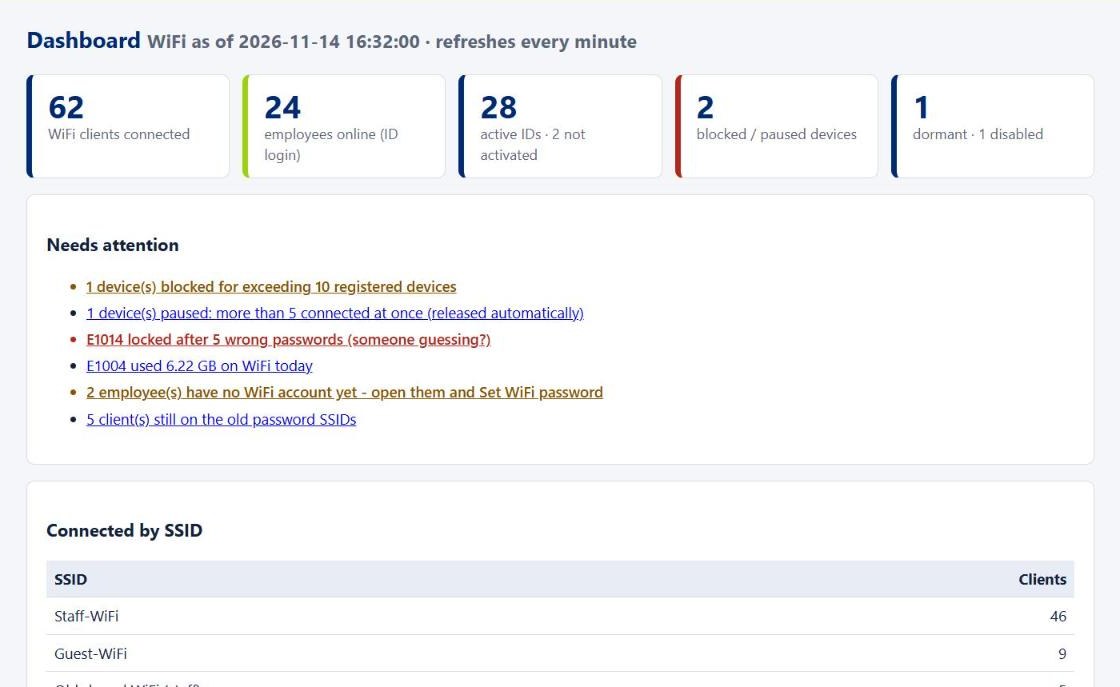
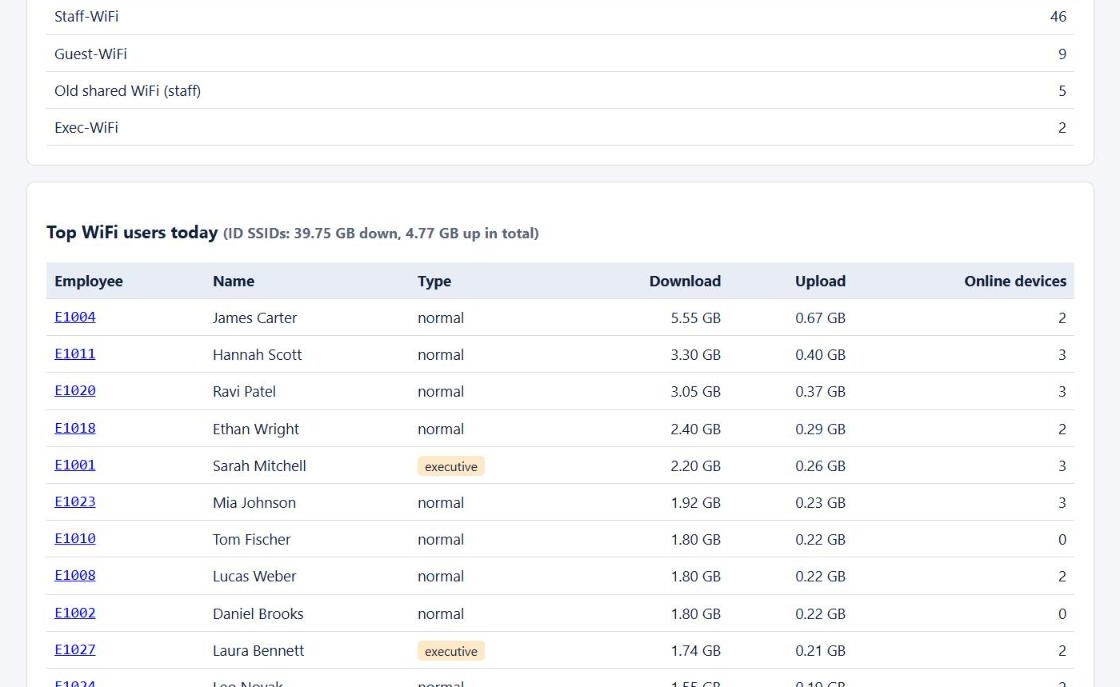
The dashboard answers "who's on the network?" at a glance, and flags what needs action: locked accounts, possible shared IDs, heavy users and devices still on the old shared network.
Adding people takes seconds
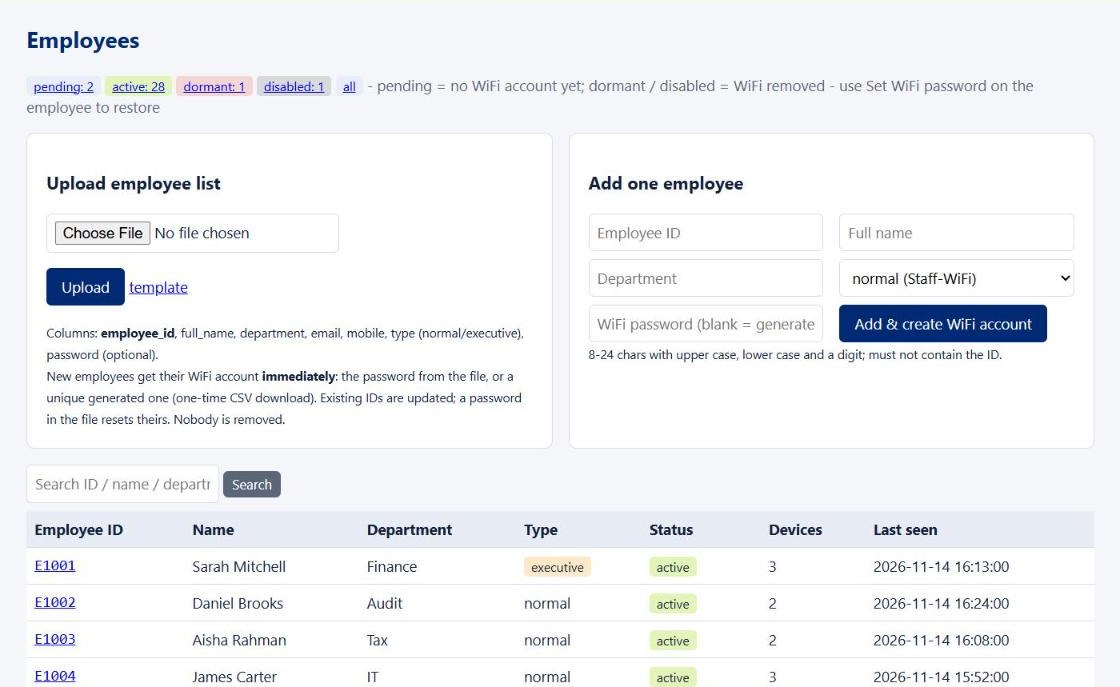
IT uploads the employee list from Excel or CSV, or adds people one by one. The WiFi account is created on the controller immediately, with either a chosen password or a unique generated one, and the credentials file can be downloaded only once.
Every device has an owner
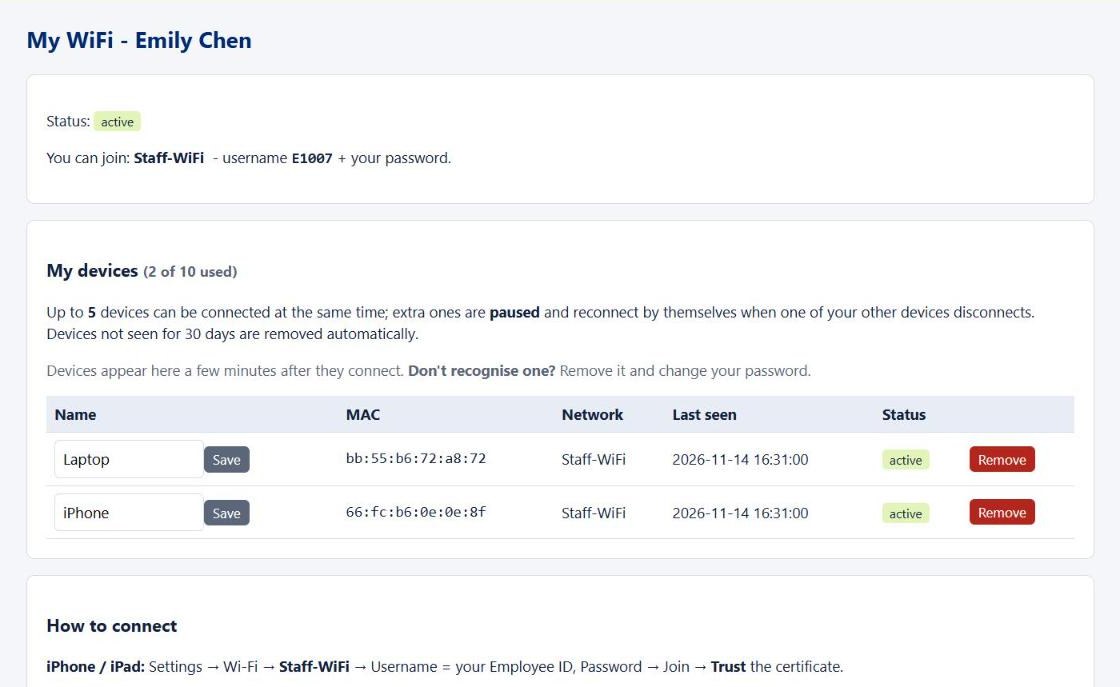
The portal links every connected device to a person: device name, which access point it's on, its IP address, when it was first and last seen. Limits keep things fair. In this office, up to 10 registered devices per person and 5 connected at once; extra devices are paused automatically and released when a slot frees up. Senior staff can be exempted.
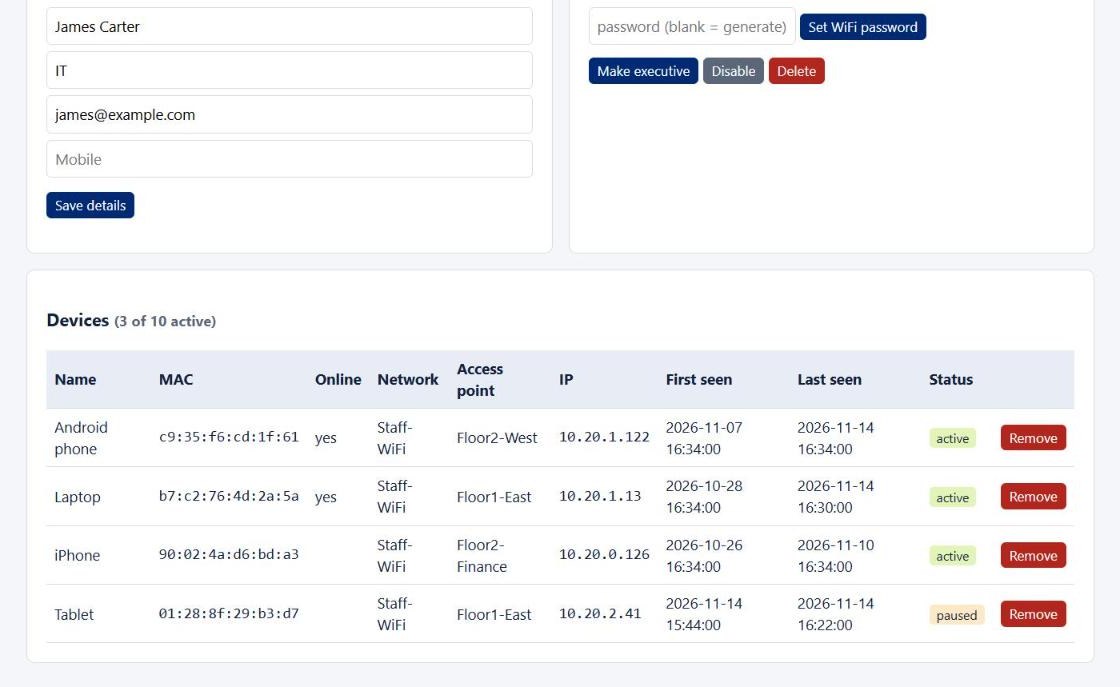
When someone leaves, deleting their account takes every one of their devices off the network. Nobody else is affected.
Step 3: Make onboarding effortless
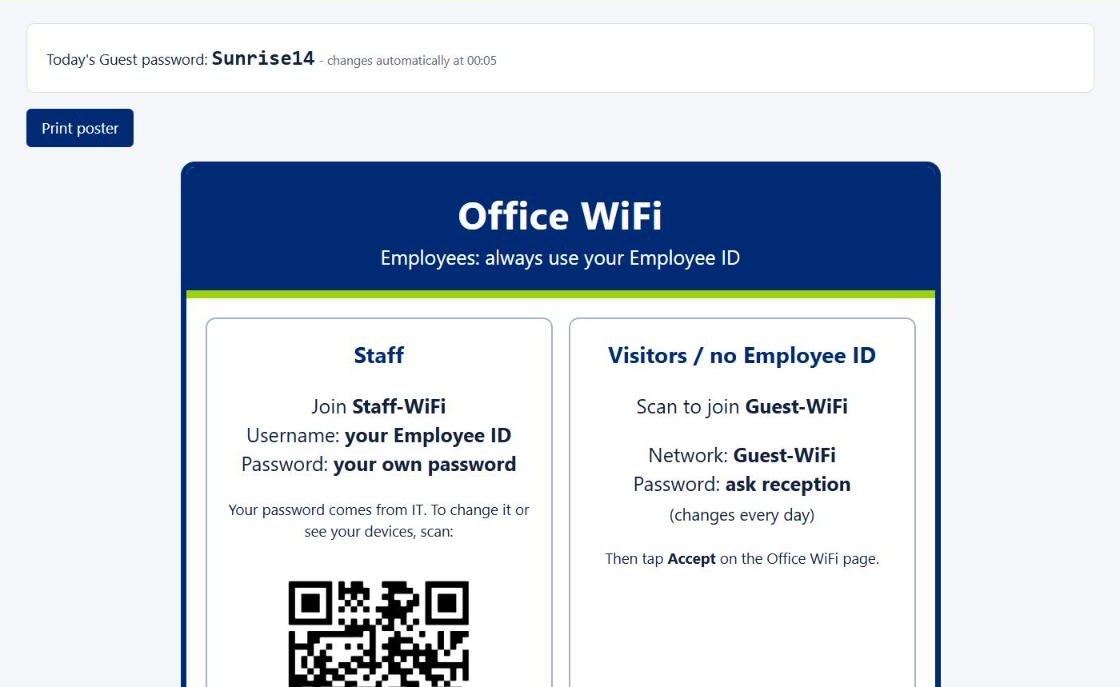
Per-person WiFi only works if people can actually get onto it. Typing enterprise WiFi settings into a laptop is not something you want 300 people doing by hand. So we made the guest network the front door:
- A new joiner connects to the Guest network (its password changes automatically every night).
- A welcome page appears. After tapping Accept, they land on a setup page.
- On a Windows laptop, one click downloads a small setup file that configures the staff network correctly. They enter their Employee ID and password once, and the laptop reconnects automatically from then on.
- iPhone and Android users see the three steps for their own device instead.
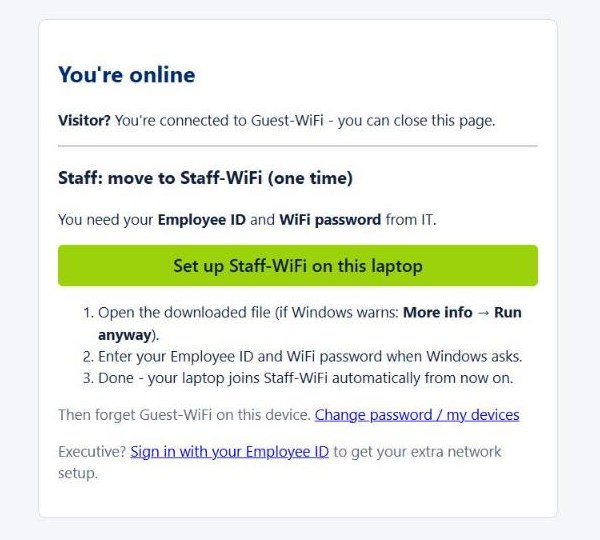
No USB sticks, no visit to the IT desk, no shared password ever handed out.
Reception has an easy job too. The portal shows today's guest password, so printed posters never go out of date.
Step 4: Give employees control of their own access
Employees get a simple "My WiFi" page. They can see their devices, rename them, remove ones they don't recognise and change their password. If something looks wrong, they can fix it themselves before calling IT.
Security wasn't an afterthought
- WiFi passwords are never stored by the portal. It keeps only a one-way hash to check sign-ins; the passwords live solely on the wireless controller.
- The controller's admin password is encrypted with the machine's own encryption, so a stolen backup is useless elsewhere.
- Admin pages only answer from the wired network or the VPN. Guests and WiFi users can't even see that they exist.
- Login rate-limiting, account lockout, CSRF protection, HTTPS and a full audit log of every change.
Built to run itself
The portal starts automatically with Windows (even when nobody is logged in), restarts itself if anything goes wrong, takes daily backups and changes the guest password every night. It's a small, lightweight application, not another server to look after.
The results
| Before | After |
|---|---|
| Two shared passwords known to everyone, forever | One login per person |
| Ex-employees and old visitors still connected | Access ends the moment an account is removed |
| Random WiFi drops through the day | Stable channels; drops eliminated |
| No idea who was using the bandwidth | Every device tied to a named person, with usage per person |
| Guests used the staff password | Separate guest network with a daily password and welcome page |
| Enterprise WiFi "needed" servers and licences | Delivered on existing hardware |
Just as important, the migration is gradual. The old shared networks keep running alongside the new ones, so the office can move people over at its own pace, then switch the old networks off from the portal with one click.
Takeaways for other IT teams
- Fix the radio first. Many "WiFi problems" are channel-planning problems.
- Per-person WiFi doesn't have to be an enterprise project. If your controller has a local user database, a thin management layer may be all you need.
- Onboarding decides adoption. Make the secure path the easy path (guest network, welcome page, one-click setup) and people will take it.
- Visibility changes behaviour. When usage is tied to names, fair-use problems mostly solve themselves.
Screenshots show a demo installation with fictional data.